


Recently I've been needing to mock test data for Component Tests / Integration Tests, and I found that certain properties can't be serialized into a JSON object. The workaround is to remove those properties from the JSON entirely — that way it won't trigger the related getters/setters. However, the data doesn't match line-for-line, but when it follows a certain pattern as described below...
[
  {
     ....
    "BusinessRules": null,
    "Id": 2486,
    "ErrorResults": []
  },
  {
     ....
    "BusinessRules": null,
    "Id": null,
    "ErrorResults": []
  }
]
At first I thought about throwing it to Claude, but that wastes tokens which are costly. So instead I figured out a way to do it manually with minimal effort but achieve the same result — and I've written up the solution in a blog post."
- Create a bookmark
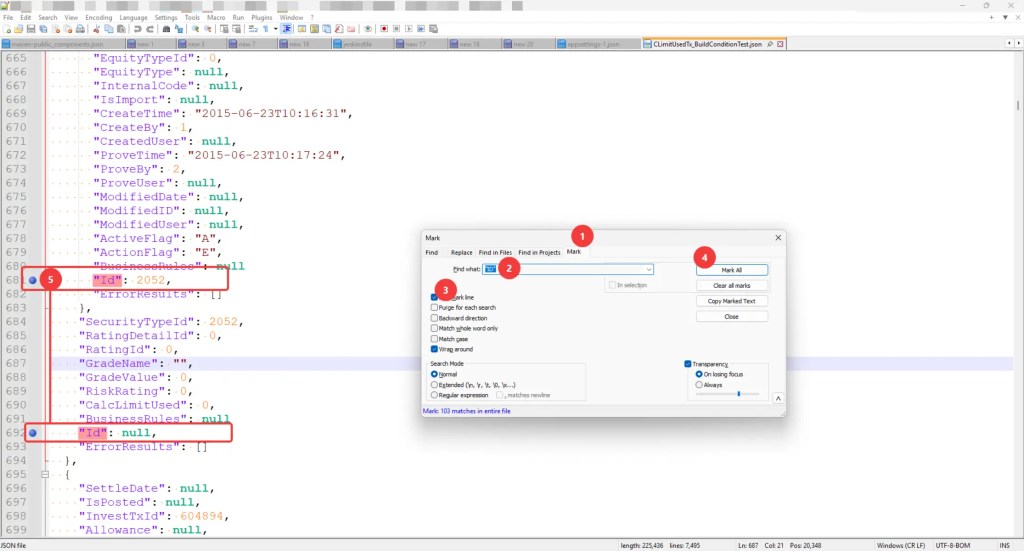
- Press Ctrl + F and select the Mark tab.
- In the Find what box, enter the text or pattern you want to match.
- Check the Bookmark line box., If using a pattern, ensure Regular expression is selected under Search Mode.
- Click Mark All.
- You should see blue circles (bookmarks) appear in the left margin.
- Remove Bookmarked Lines
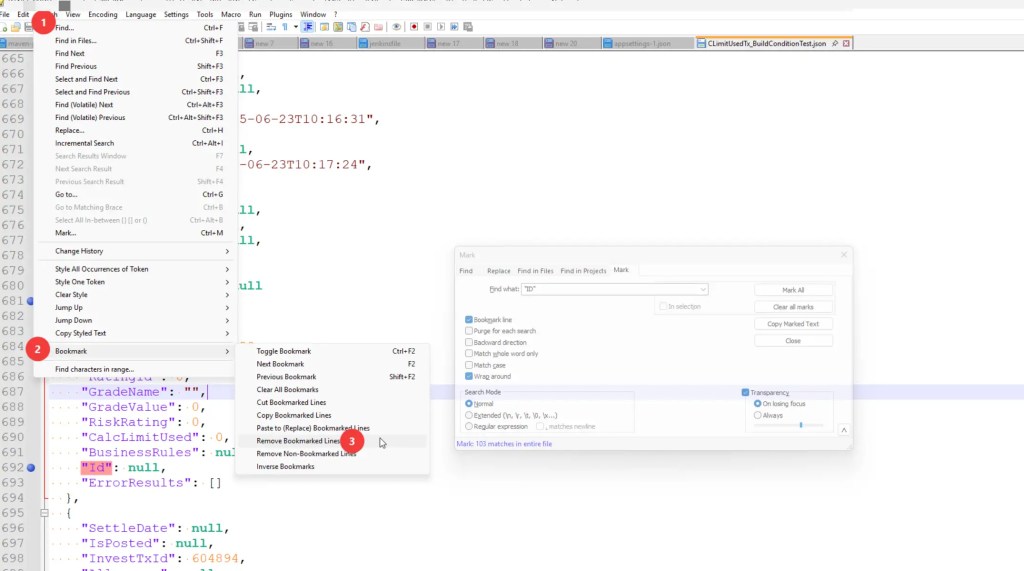
- Go to the top menu: Search
- Bookmark
- Remove Bookmarked Lines.
Repeat Same Step for other keywords


