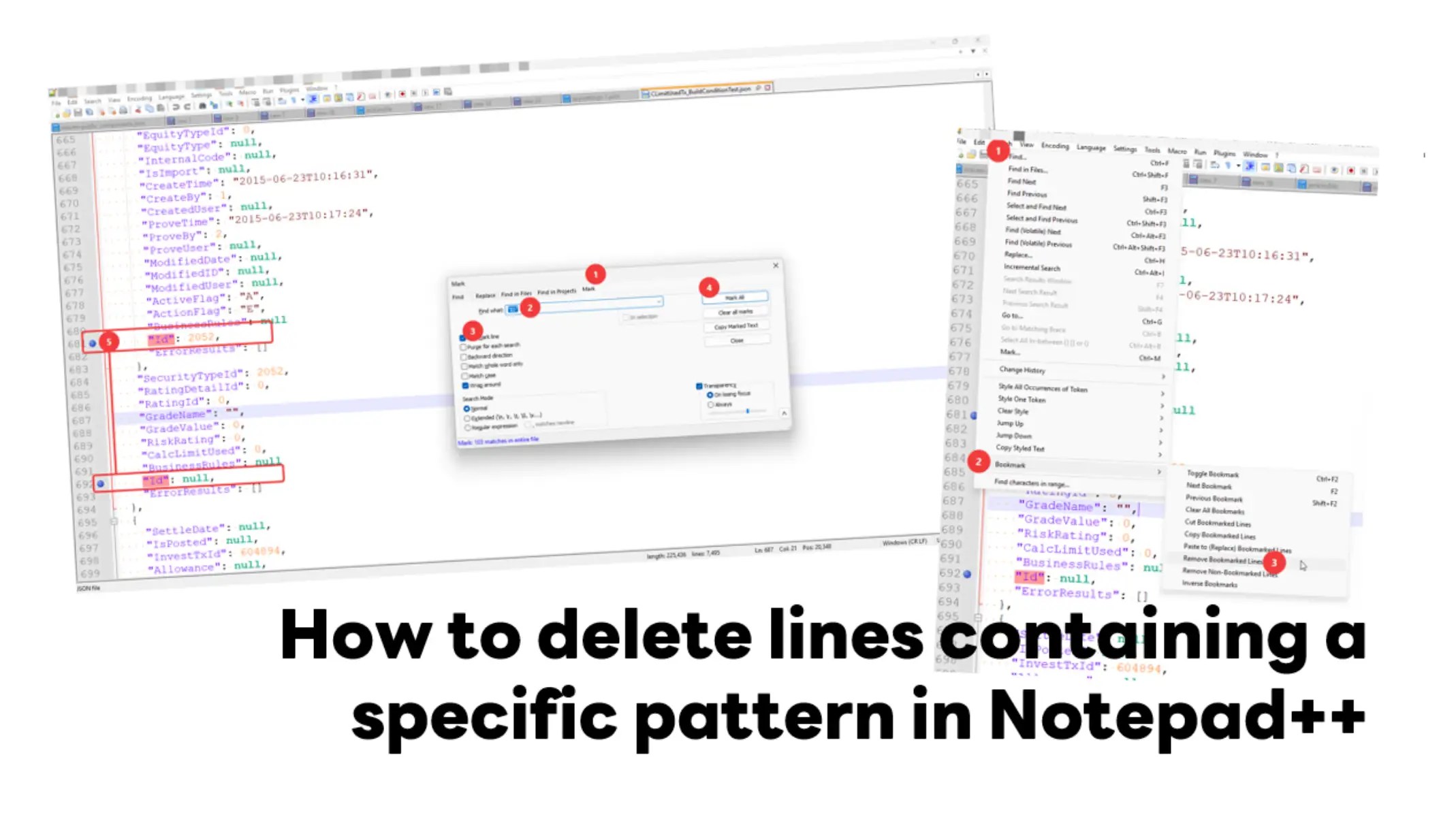


Many people know RustDesk as a TeamViewer or AnyDesk alternative built with Rust. Most guides out there show you how to pair it with Tailscale for remote access from anywhere.
But what if you only need it on your local network (LAN)? This Blog has got you covered.
At Host PC (Target)
- Install RustDesk Client First !!! + Set Fixed IP for reference such as 192.168.1.191
- Open RustDesk on the computer you want to control.
- Click the three dots (Menu) next to your ID.
- Go to Settings and select Security > Unlock It

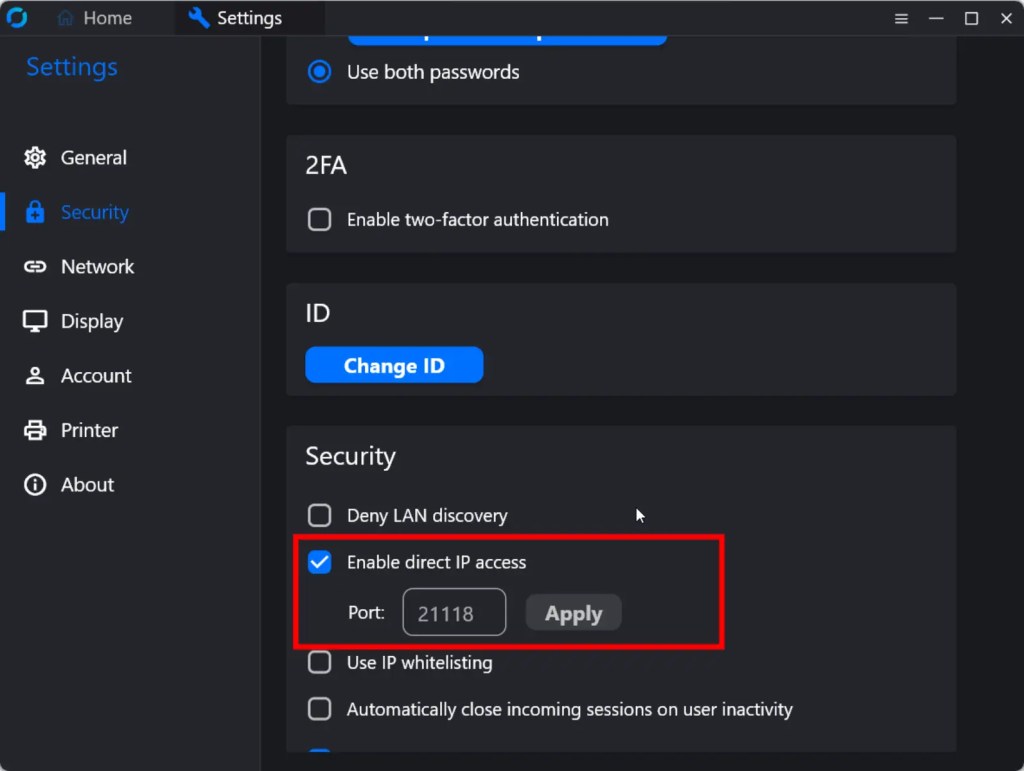
- Scroll down and check Enable direct IP access.
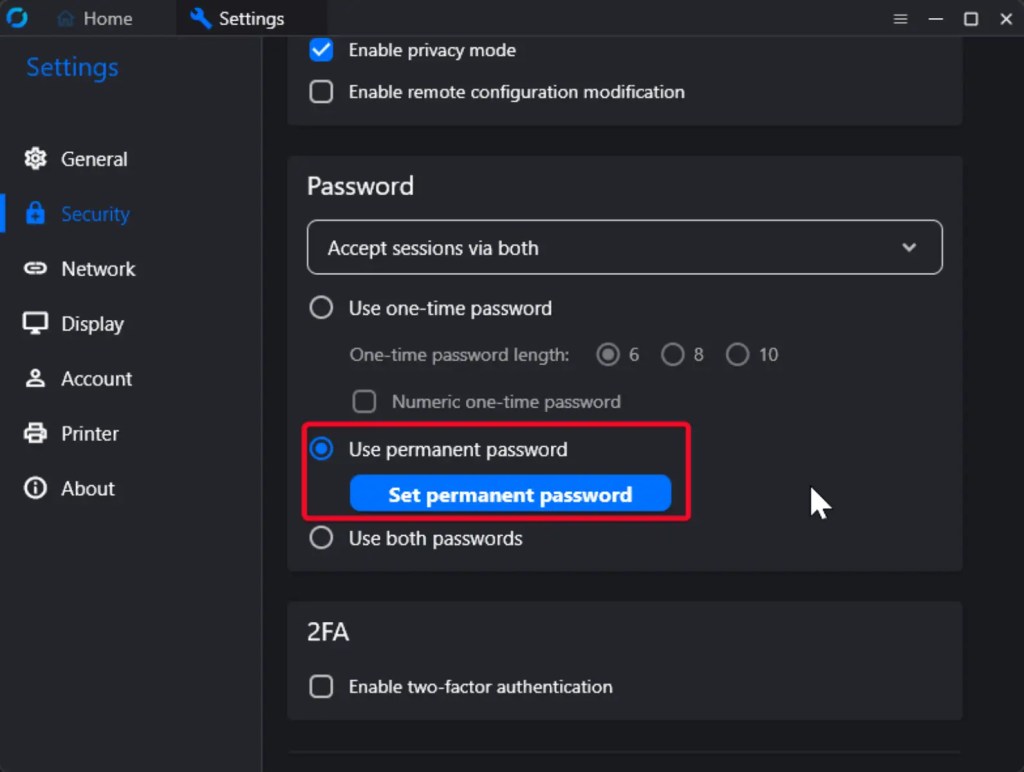
- Set a permanent password in the same security menu for easy access
Connect from the Client PC
- Install RustDesk Client First !!!
- Open RustDesk on the computer you are using to control the other device.
- Find the local network IP address of the host computer (such as 192.168.1.191).
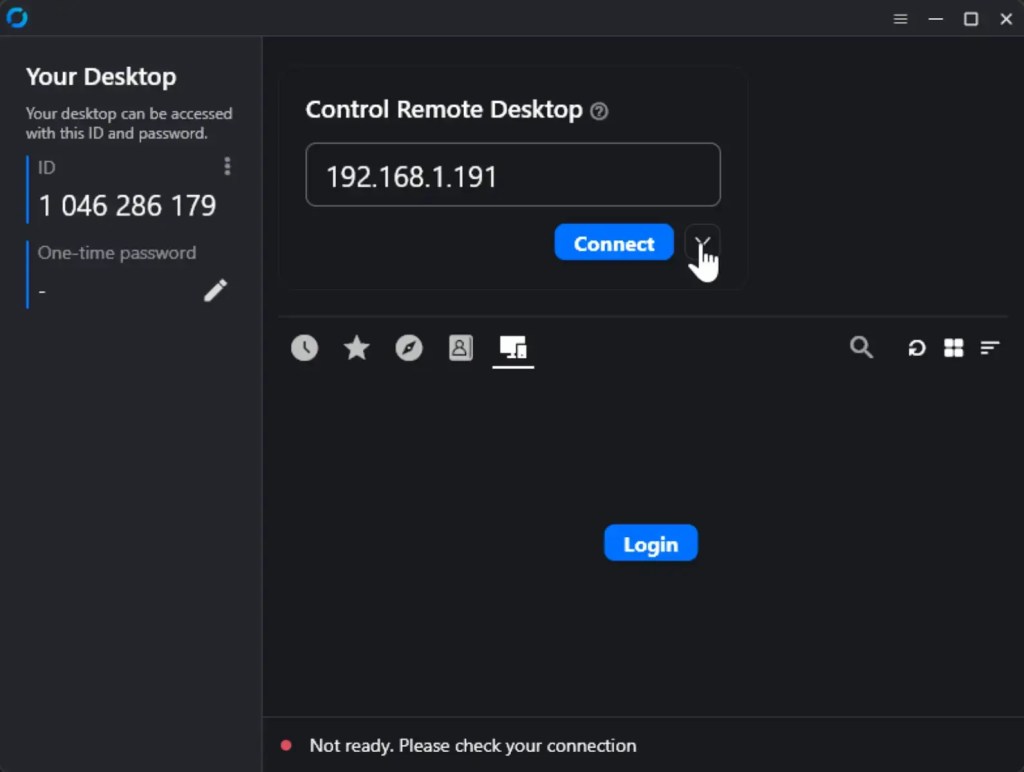
- Type that local IP address into the ID or IP input box on the home screen.
- Click Connect and enter your permanent password
Note: Direct IP connections on a local network are fast and do not require internet, but note that direct LAN IP connections may show as unencrypted by default